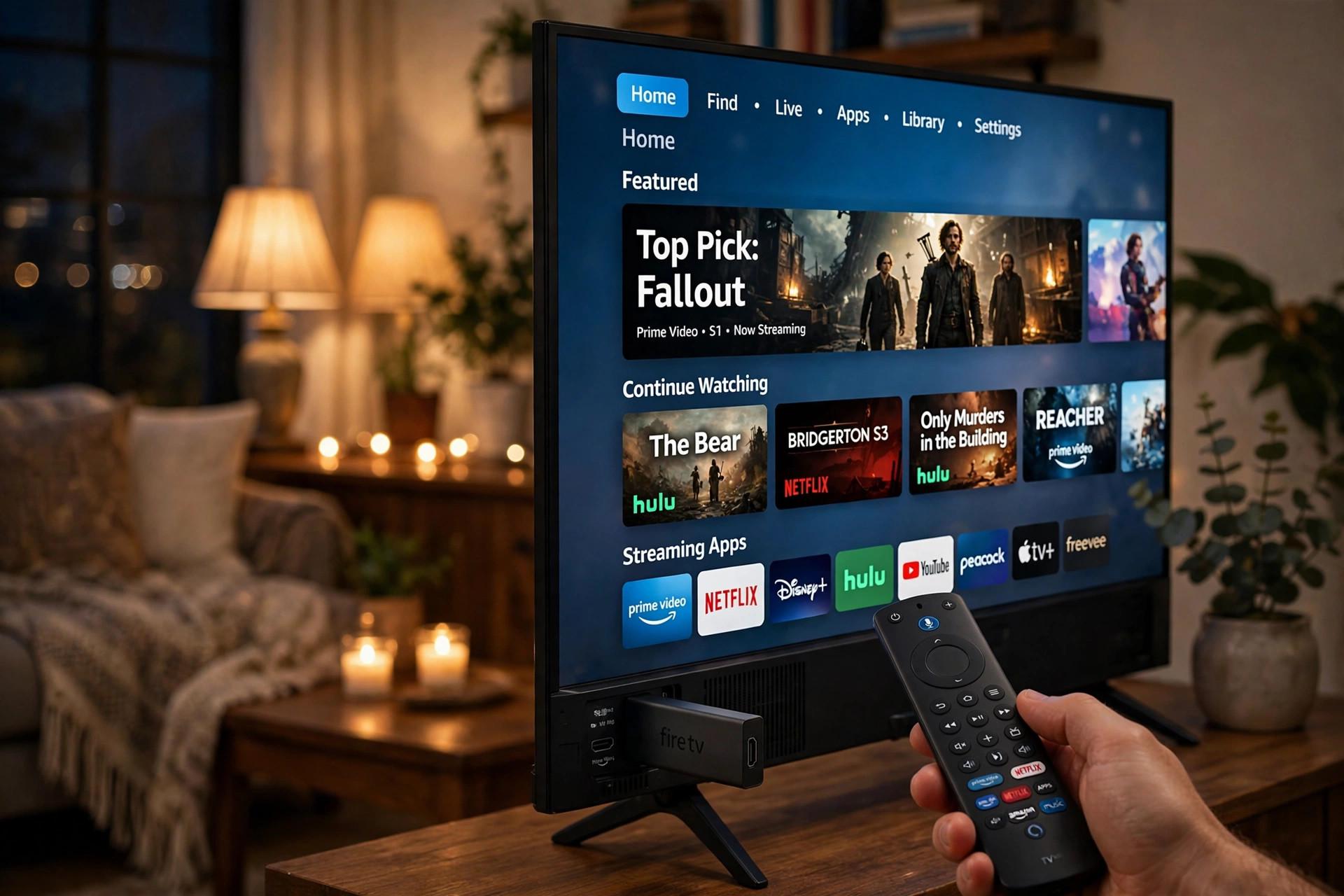
Why the Firestick 4K Max is the right stick
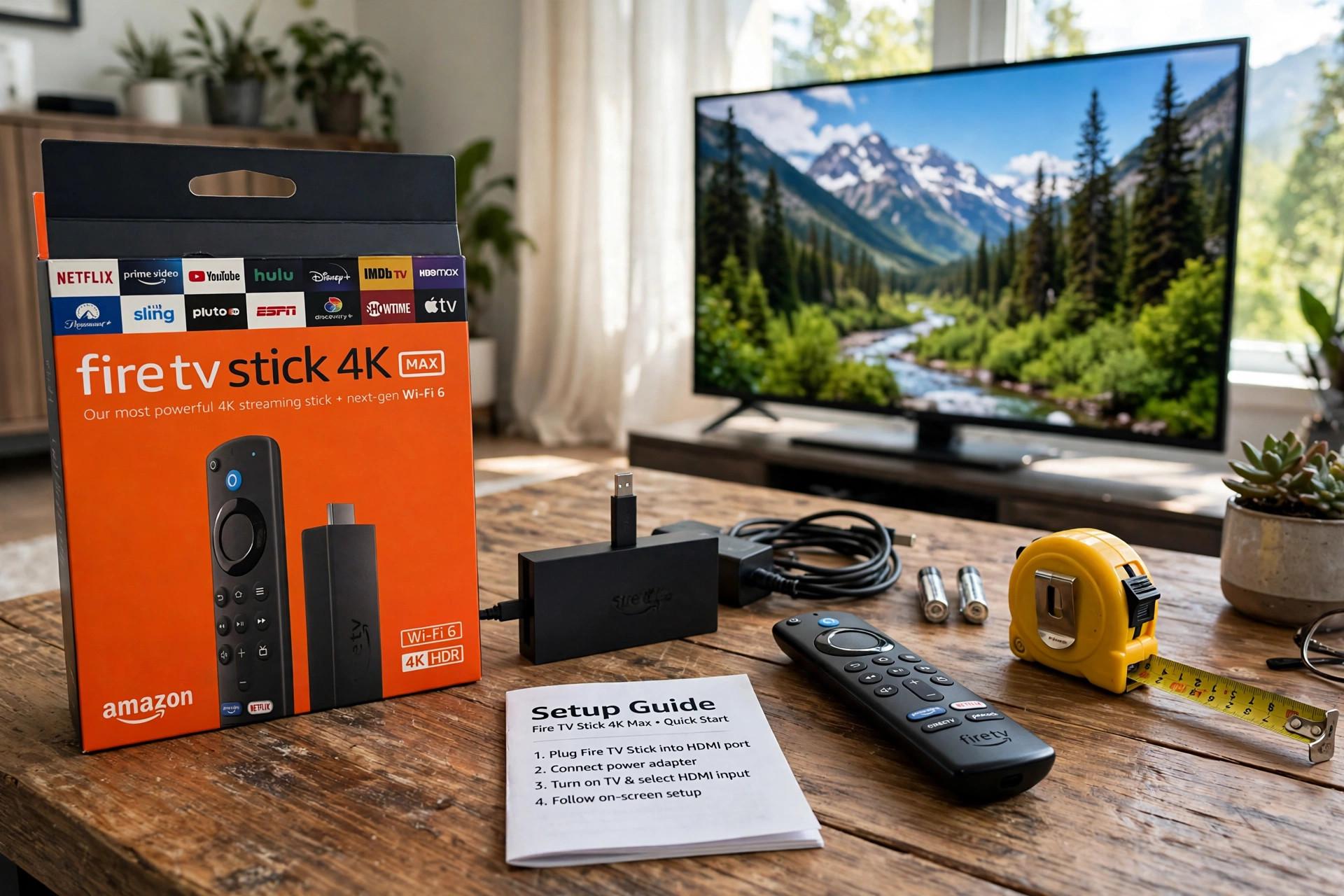
The Firestick 4K Max is the best IPTV stick Amazon makes, and the difference from the older models is real: a faster processor, more memory, Wi-Fi 6, and support for 4K at 60 frames per second with Dolby Vision. On a 65-inch 4K TV, the Max plays a 4K NFL game on FOX smoothly, while the basic Fire TV Stick stutters on the same stream — the extra memory and the faster chip are doing work you can see. If you watch on a 4K TV and your stick is three or four years old, a $40 upgrade to the 4K Max is the cheapest picture upgrade there is.
The Max also handles the EPG better, because the larger memory lets TiviMate load a full seven-day guide without slowing down. The older sticks load the guide slowly and freeze when you scroll fast, which makes the service feel broken when the stick is the problem. Buy the Max, plug it into an HDMI 2.0 port, and the whole experience changes — channels open faster, the guide scrolls smoothly, and 4K sports play the way they should.
Set up IPTV on the Firestick 4K in 10 minutes
The setup takes ten minutes and one message. First, message support on WhatsApp for the current Downloader code — the code changes regularly, which is why it is never printed on a website. Then open Settings on the Firestick, go to My Fire TV, then Developer Options, and enable Apps from Unknown Sources. Install Downloader from the Amazon Appstore, open it, enter the code, and download IBO Pro Player. Install the player, open it, and copy the MAC address and key from the screen.
Send the MAC and key to support on WhatsApp, and the team activates your playlist in minutes. Restart the player, and your channels load — 57,000+ on Premium, with ABC, NBC, CBS, FOX, ESPN and every major sports channel. Our install guide walks through every step with screenshots in words, and free remote installation means the team can do it with you on the chat if you get stuck anywhere.
Settings that make 4K actually work
Three settings decide whether your Firestick 4K shows real 4K. First, open Settings, then Display and Sounds, then Display, and set the resolution to Auto up to 4K 60 Hz — a forced resolution makes the stick rescale every stream, which adds work and causes stutter. Second, in TiviMate, open Settings, then Playback, and set the buffer to Large, so the player holds more video ahead of time. Third, turn on hardware decoding in IPTV Smarters Pro, because software decoding taxes the small processor and stutters on 4K sports.
- Set the Firestick display to Auto up to 4K 60 Hz, never a forced resolution.
- Set the buffer to Large in TiviMate and turn on hardware decoding.
- Use the HDMI extender so the stick is not buried behind the hot TV.
- Keep 1 GB of storage free and clear the player cache every month.
- Use Ethernet or the 5 GHz band for the stick, never crowded 2.4 GHz.
Use the HDMI extender that came in the box. It moves the stick away from the hot back of the TV, which stops the heat slowdown that causes freezing after an hour, and it improves the Wi-Fi signal because the antenna is no longer buried behind a metal TV chassis. Keep at least 1 GB of storage free — a full stick freezes, and clearing the cache monthly prevents it. Our Firestick freezing guide covers every fix in detail.
Is your 4K real? The test
A Firestick 4K can show you whether the stream is really 4K. Open an NFL game on FOX, press and hold OK in TiviMate to open the stream information, and check the resolution: 3840 by 2160 means real 4K, 1920 by 1080 means the provider is sending 1080p and the stick is upscaling it. Check the frame rate too — 60 fps for US sports, not 30. Then look at the picture: in real 4K you can see individual blades of grass and the texture of the jerseys; in upscaled 1080p the grass is a green blur.
Run the test during the free 24-hour trial at peak time, because a stream that is 4K at noon can drop to 1080p at 8 PM when the servers are busy. Watch the first half of a game and check the stats again at halftime — a service that holds 4K through the whole game is delivering what it advertises, and a service that drops to 1080p at kickoff is not. Our stream quality guide explains the full test, including bitrate and dropped frames.
Wi-Fi 6 and Ethernet on the 4K Max
The 4K Max has Wi-Fi 6, which is faster and handles crowded networks better than the Wi-Fi 5 in older sticks — but only if your router supports it. If your router is Wi-Fi 6, put the stick on the 5 GHz band and the speed will hold through the evening, even when the neighbors stream. If your router is older, the stick falls back to Wi-Fi 5, and a USB Ethernet adapter for $15 is the better fix: a cable delivers a steady 25 Mbps for 4K that Wi-Fi cannot match in a crowded apartment building.
Test the speed on the stick itself, not on your phone. Open the speed test app on the Firestick at 8 PM and confirm 25 Mbps for 4K. A phone in the same room can show 90 Mbps while the stick behind the TV shows 12, because the stick antenna is tiny and buried. If the stick test is low, move the router closer, use the extender, or plug in the Ethernet adapter — the fix that works is the one that raises the number on the stick, not on the phone.
4K sports on the Firestick
Live sports are the hardest 4K test for a Firestick, because the camera moves fast and the picture is full of detail. An NFL game on CBS or FOX at 4K and 60 fps needs 25 Mbps held steady, and the Max handles it when the setup is right. Open the channel thirty minutes before kickoff, let the buffer fill, and do not channel-hop in the last five minutes — every change empties the buffer at the exact moment the servers are busiest. Watch the first quarter and count the freezes: zero means the stick, the service and the network are all ready for the season.
For the biggest nights — the Super Bowl, the NBA Finals, a UFC pay-per-view — start the stream an hour early and keep the stick cool. A hot stick slows itself down, so the extender and a little air around the TV matter more on a three-hour game than on a thirty-minute show. If the picture ever softens during a game, check the player stats: a drop from 4K to 1080p at kickoff means the server is overloaded, not the stick, and a message to support can move you to a less loaded server.
Firestick 4K vs Smart TV apps
A Firestick 4K Max beats most Smart TV apps for IPTV, because the TV apps are often slower, harder to update, and missing features like a proper EPG. A Samsung or LG Smart TV runs IBO Player well, but TiviMate on a Firestick is faster, smoother, and easier to set up with favorites and catch-up. The stick also moves with you: unplug it from the living-room TV, plug it into the bedroom TV, and your whole setup follows. A Smart TV app stays with the TV, and a new TV means a new setup.
The one case where the Smart TV wins is a house that hates extra remotes. If the family wants one remote and no extra box, the TV app is simpler — but the picture and the speed will be worse, and the EPG will load slower. For most homes, the Firestick 4K Max at $40 is the better buy, and the plans page shows the Premium service that feeds it 4K streams worth watching.
Troubleshooting the Firestick 4K
When the Firestick 4K freezes, work the list in order: check free storage and clear the player cache, restart the stick and the router, set the buffer to Large, switch to Ethernet or 5 GHz, and test the same channel on your phone. Each step takes two minutes, and most freezing is gone by step three. If the channel freezes on the phone too, the stream itself is the problem, and a message to support with the channel name and the time gets it checked on the server side.
If the picture is soft on every channel, check the display setting first — a forced resolution or a wrong HDMI port can limit the stick to 1080p. If the sound lags behind the lips, adjust the audio delay in the player settings by 100 to 200 milliseconds. And if the stick runs hot, use the extender and give it air. Our blog has the full troubleshooting guides, and support on WhatsApp answers 24/7 when the list does not fix it.
One last check costs nothing: compare the Firestick 4K with your phone on the same channel, at the same time. If the phone plays clean in 4K while the stick stutters, the stick is the limit — check its storage, its heat, and its Wi-Fi. If both stutter together, the stream or the server is the limit, and a message to support with the channel and the time gets it checked. That two-device comparison is the fastest way to separate a stick problem from a service problem, and it takes less than a minute.
The 4K Max earns its price in the details you only notice on a big screen. The faster chip opens channels a second or two sooner, the extra memory keeps the guide smooth after a week without a restart, and the Wi-Fi 6 radio holds the 5 GHz band steadier through a wall than the older stick. None of that matters if the settings fight it: a forced resolution makes the stick rescale every stream, the data monitoring feature eats memory in the background, and screensaver ads download video previews while you watch. Turn those three off, set the buffer to Large, and use the extender so the stick stays cool. If freezing survives all of that, the no-buffering Firestick walkthrough works through the Wi-Fi and server causes one by one, so you can tell a local problem from a provider problem before you spend money on a faster plan.