Best IPTV service for Firestick: why the stick freezes first
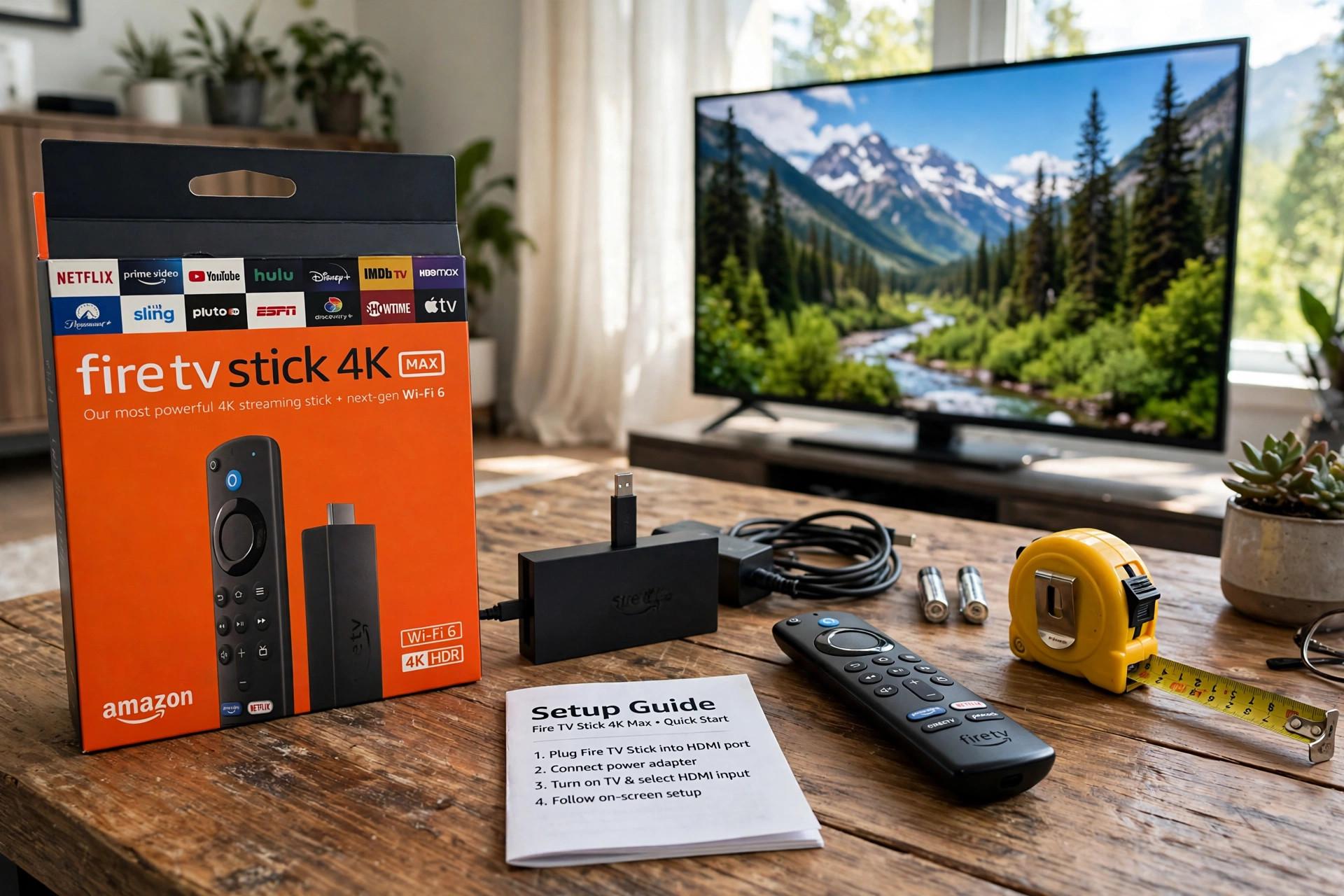
The Firestick 4K and 4K Max are small computers with 8 GB of storage and a modest amount of memory, and IPTV is one of the heaviest things you can ask them to do. A 4K stream on FOX Sports needs a constant flow of data, decoded in real time, while the EPG loads in the background and the player keeps a buffer ready. When storage drops under 500 MB free, the system has nowhere to put that buffer, so the picture freezes while the stick shuffles data around. The same stick that plays Netflix fine can freeze on IPTV, because Netflix adapts its quality down instantly while many IPTV players hold the quality you picked.
Heat makes it worse. A Firestick plugged directly into the back of a TV, sandwiched between the TV and the wall, runs hot during a three-hour NFL game, and a hot stick slows itself down to protect the chip. If the freezing starts after an hour of smooth viewing, heat is a likely suspect. A short HDMI extender — the little cable that came in the box — moves the stick away from the hot back of the TV and improves the Wi-Fi signal at the same time, because the antenna is no longer buried behind a metal TV chassis.
Free storage and clear the cache
Open Settings on the Firestick, go to Applications, then Manage Installed Applications, and check the storage figure at the top. If it shows less than 1 GB free, you have found the problem. Go through the app list and uninstall anything you do not use: old games, duplicate players, apps you tried once. Then open IPTV Smarters Pro or TiviMate, select Clear Cache — not Clear Data, which would delete your login — and restart the stick by unplugging it for thirty seconds. Do this once a month and the freezing stays away.
Be careful with the difference between cache and data. Clearing the cache removes temporary files and is safe; clearing data wipes your username, password and playlists, and you will have to set everything up again. In TiviMate, the cache lives under Settings, then Playback, while in IPTV Smarters Pro it sits in the app settings under the player section. After clearing, open a channel on ESPN and watch for ten minutes. If the picture holds, the cache was the culprit, and a monthly clear becomes part of your routine.
Set the buffer and decoder correctly
In TiviMate, open Settings, then Playback, and set the buffer size to Large. The default buffer is small, which means the player has almost no reserve when your Wi-Fi dips for a second. A large buffer holds more video ahead of time, so a brief dip in speed never reaches your screen. In IPTV Smarters Pro, open Settings, then Player, and make sure hardware decoding is turned on — software decoding taxes the small Firestick processor and causes stutter on 4K channels, especially fast sports on ESPN and TNT.
If you use an external player such as VLC or MX Player inside TiviMate, switch back to the built-in player for a test evening. External players sometimes ignore the buffer setting and decode with different settings, which can freeze a stream that the built-in player handles smoothly. The built-in player in TiviMate and IPTV Smarters Pro is tuned for the Firestick hardware, and it is the combination our support team tests first when a customer reports freezing on a specific channel.
Wi-Fi: the hidden Firestick weakness
The Firestick antenna is tiny and sits behind your TV, so it gets a weaker signal than your phone in the same room. Open Settings, then Network, and check the signal strength for your Wi-Fi network. If it shows Fair or Poor, move the router closer or use the HDMI extender to pull the stick out from behind the TV. Better still, add a USB Ethernet adapter — about $15 for a Firestick 4K Max — and plug the stick into a cable. A wired Firestick almost never freezes from network problems, because the cable delivers a steady speed that Wi-Fi cannot match in a crowded home.
If a cable is impossible, put the Firestick on the 5 GHz band and keep other devices on 2.4 GHz. The 5 GHz band is faster and less crowded, which matters in apartment buildings where twenty neighbors share the same airwaves. Restart the router once a week, too — a router that has run for a month without a restart slows down as its memory fills, and a two-minute restart often fixes freezing that looked like a service problem. Our install guide walks through the Firestick setup from the start, including the Downloader step.
When freezing hits only one channel
If ABC plays perfectly and only ESPN freezes, the problem is almost never your Firestick. One channel can freeze because its source feed is unstable, because the channel is being moved between servers, or because that specific stream is in 4K while the rest are in 1080p. Try the same channel on your phone with the same account: if it freezes there too, the stream itself is the problem, and no Firestick setting will fix it. Message support on WhatsApp with the channel name and the time, and a good team will check that stream and move it to a healthier source.
Also check whether the freezing follows the time of day. A channel that freezes only during live games — say, NFL Network on Sunday afternoons — is hitting peak load on that stream, because everyone watching the game is pulling the same feed at once. A provider with spare capacity on its sports servers handles that surge; a provider without it does not. That is why the honest test of any service is a live game during the trial, not a movie at noon. Start the free 24-hour trial on a game day and watch the channels you care about most.
The Firestick freezing checklist
Run through this list in order and test for ten minutes after each step. First, check free storage and clear the player cache. Second, restart the Firestick and the router. Third, set the buffer to Large and turn on hardware decoding. Fourth, move the stick to the 5 GHz band or plug in an Ethernet adapter. Fifth, test the same channel on another device. Each step takes two minutes, and most freezing is gone by step three.
- Check storage: keep at least 1 GB free on the Firestick at all times.
- Clear the player cache monthly — cache, not data, so your login survives.
- Set the buffer to Large in TiviMate and turn on hardware decoding.
- Use the HDMI extender and the 5 GHz band, or add a USB Ethernet adapter.
- Test the freezing channel on a phone to separate device problems from stream problems.
If the list does not fix it, the cause is on the server side, and the fix is a provider with anti-freeze servers and real support. Message us on WhatsApp with your Firestick model, the channel, and the time it freezes — we check the line on our side and move you to a less loaded server when needed. Our blog has a full guide to fixing IPTV buffering in general, and the plans page shows the Premium servers built for exactly this problem.
Firestick 4K Max vs older models
Not every Firestick handles IPTV equally. The Firestick 4K Max has a faster processor, more memory and Wi-Fi 6, which makes it noticeably smoother on 4K sports than the older Firestick 4K or the basic Fire TV Stick. If you watch on a 4K TV and your stick is three or four years old, a $40 upgrade to the 4K Max is the cheapest fix available, and it often ends freezing that no setting could solve. The older stick is fine on a 1080p TV in a bedroom, but it struggles with the 4K feeds that a living-room TV demands.
Whatever model you own, keep the software updated: Settings, then My Fire TV, then About, then Check for Updates. Amazon ships performance fixes that improve video decoding, and an outdated stick can freeze on streams that a updated one plays smoothly. After an update, restart once more and retest your worst channel. If you are buying a new stick for IPTV, pick the 4K Max over the basic model — the extra memory pays for itself the first Sunday you watch football without a single freeze.
Firestick settings most people never touch
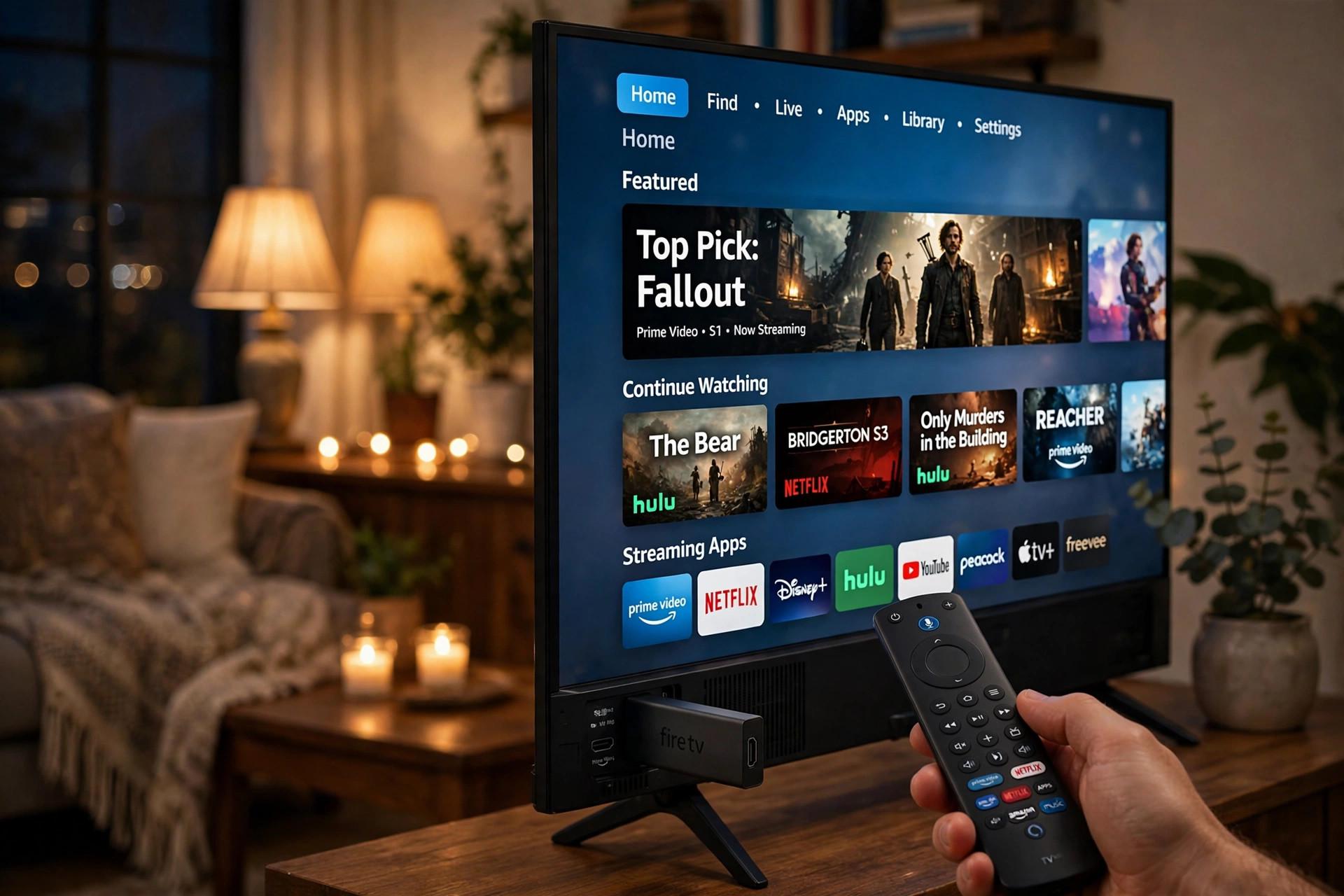
Three buried settings make a real difference for IPTV. First, open Settings, then Display and Sounds, then Display, and set the video resolution to Auto up to 4K 60 Hz instead of forcing a fixed resolution — a forced setting makes the stick rescale every stream, which adds work and causes stutter on fast sports. Second, turn off the data monitoring feature under Settings, then Preferences, then Data Monitoring, because it runs in the background and uses memory on every stream. Third, disable the screensaver ads and the featured content rotation on the home screen, which download video previews in the background while you watch.
Also look at the apps running in the background. Press and hold the Home button, open Apps, and force-stop anything you are not using — a weather app or a game left running can hold memory that the IPTV player needs. A Firestick with a clean background, a large buffer, and a wired connection is a different device from the same stick with ten apps running and a full cache. If you follow the install guide from a clean start, with only TiviMate or IPTV Smarters Pro installed, you will see the difference on the first game night. And when the stick still freezes after all of this, start the free trial on a second device to confirm whether the stick or the service is at fault.
The Firestick you own decides which problems you will meet. The older Stick tops out at 1080p and runs short of memory fast, the 4K Max handles 4K with room to spare, and the Cube adds hands-free voice and a faster chip that opens channels a second or two sooner. Buy the stick for the TV it serves: a 1080p bedroom set does not need a Max, while a 65-inch 4K panel deserves one. Once the hardware is right, the software matters just as much, and the Firestick 4K setup guide walks through the display and buffer settings that stop freezing on fast sports. If the picture still stutters after that, the no-buffering Firestick walkthrough works through Wi-Fi bands, cache, and heat, one cause at a time. And if you are still choosing a provider, the best IPTV service USA overview puts the Firestick advice next to the channel list and prices, so you can judge the whole package before the trial.